Wafeq OCR: Automating Expense and Bill Entry Without Losing Control

Manual entry of invoices and expenses remains one of the most time-consuming tasks for finance teams. Between reviewing documents, re-typing numbers, and fixing small errors, valuable hours are lost on work that should be simpler.
In this article, we break down how Wafeq’s Optical Character Recognition (OCR) feature changes the entire process. You’ll see how documents are read automatically, draft entries are created for review, and both single and bulk bills can be handled faster — all while keeping full control before posting.
What is Wafeq OCR and what does it Actually Do?
At its core, Wafeq’s OCR feature is built to solve one very specific accounting problem: Manual data entry from financial documents.
Instead of typing invoice details line by line, Wafeq OCR automatically reads, extracts, and records key accounting data from uploaded documents—such as invoices, receipts, and bills—and turns them into draft accounting entries inside Wafeq.
In practice, this is what happens:
- You upload one document or a batch of documents.
- AI extracts key fields from each file.
- A Separate draft entry is created for every document.
- You review, adjust if needed, and confirm before posting
The important shift here is simple:
The important shift here is simple:
Accountants no longer start from a blank screen. They start from pre-filled, structured data that’s ready for validation.
Unlike generic OCR tools that only convert images into text, Wafeq OCR is accounting-aware. It understands financial documents and maps extracted data directly to accounting fields, while keeping the final posting decision fully in your control.
Wafeq OCR vs Manual Data Entry — What Actually Changes?
If you’ve worked in accounting long enough, you already know the real cost of manual data entry isn’t just time—it’s focus, accuracy, and scalability. With manual entry, accountants upload documents one by one, retype every detail, double-check, and constantly switch between documents and systems. With Wafeq OCR, the workflow shifts entirely from entering data to reviewing data.
In Wafeq:
In Wafeq:
Instead of entering data, you’re reviewing data.
What Types of Documents Can Wafeq OCR Handle?
Wafeq OCR isn’t built for "documents in general". It’s built specifically for the documents accountants deal with every day. That focus makes a big difference in accuracy and usability.
With Wafeq OCR, you can upload and process:
- Purchase invoices from suppliers.
- Expense receipts (travel, meals, subscriptions, utilities)
- Bills and vendor charges.
- VAT-compliant tax invoices.
- PDFs and scanned images (JPG, PNG)
Beyond scanned documents, the same intelligence extends to structured financial files:
- Bank statements.
- CSV files.
- Excel spreadsheets.
Because these documents follow recognizable financial patterns—totals, VAT lines, supplier details— Wafeq’s AI helps by Auto-detecting key columns, suggesting field mapping, and validating data before import.
This is especially helpful in environments where documents come from multiple sources:
- Different suppliers.
- Different invoice formats.
- Different languages and layouts.
Instead of forcing accountants to adapt to each document, Wafeq adapts to the documents themselves. The result? Faster processing, fewer manual fixes, and much smoother document handling across the board.
How to Use Wafeq OCR for Expenses and Bills
One of the most practical ways Wafeq OCR shows its value is in day-to-day expense records and bill creation. Instead of manually filling in every field, you can let the system do the first pass for you.
You upload the document simply, and Wafeq handles the rest.
Auto-Fill Expense Details from a Receipt
When recording a cash or card expense, you can attach a receipt and let Wafeq OCR automatically fill in the expense details. How it works:
- Click
+ Attach Receiptsordrag a file or click to upload. - You can upload a new file or select one you’ve already uploaded before.
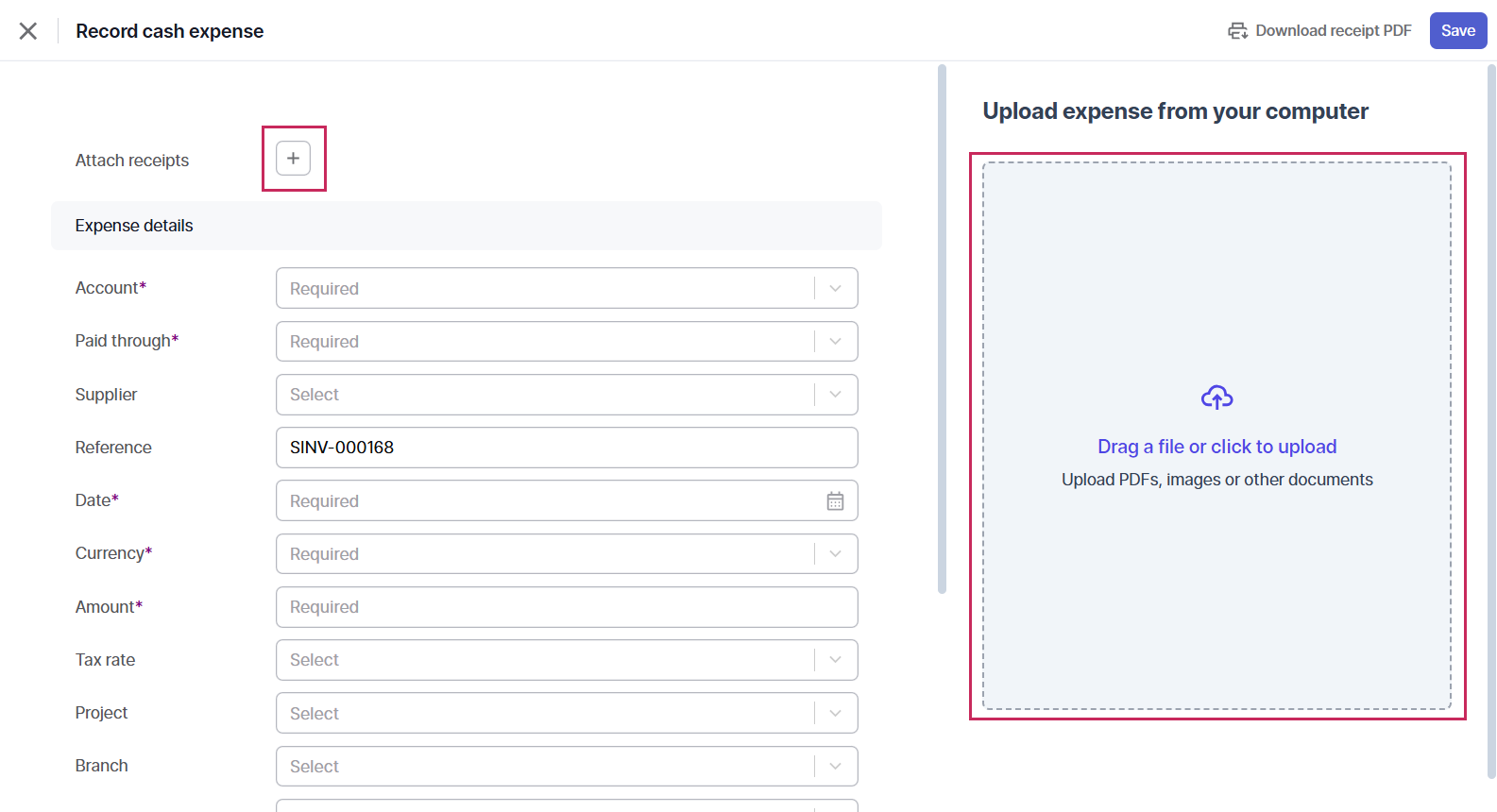
3. Wafeq OCR reads the receipt and automatically extracts key details such as:
- Vendor name
- Reference number
- Date
- Currency
- Amount
Once the data is filled in, you only need to complete any fields that weren’t detected automatically.

Auto-Fill Bill Details Using OCR
Wafeq OCR also helps when creating purchase bills, and you can use it in two flexible ways, depending on your workflow.
1. Auto-Fill a Single Bill
If you’re working with one bill at a time, you can:
- Go to the Purchase Bills list.
- Click
Create bill. - Select the bill file or image.
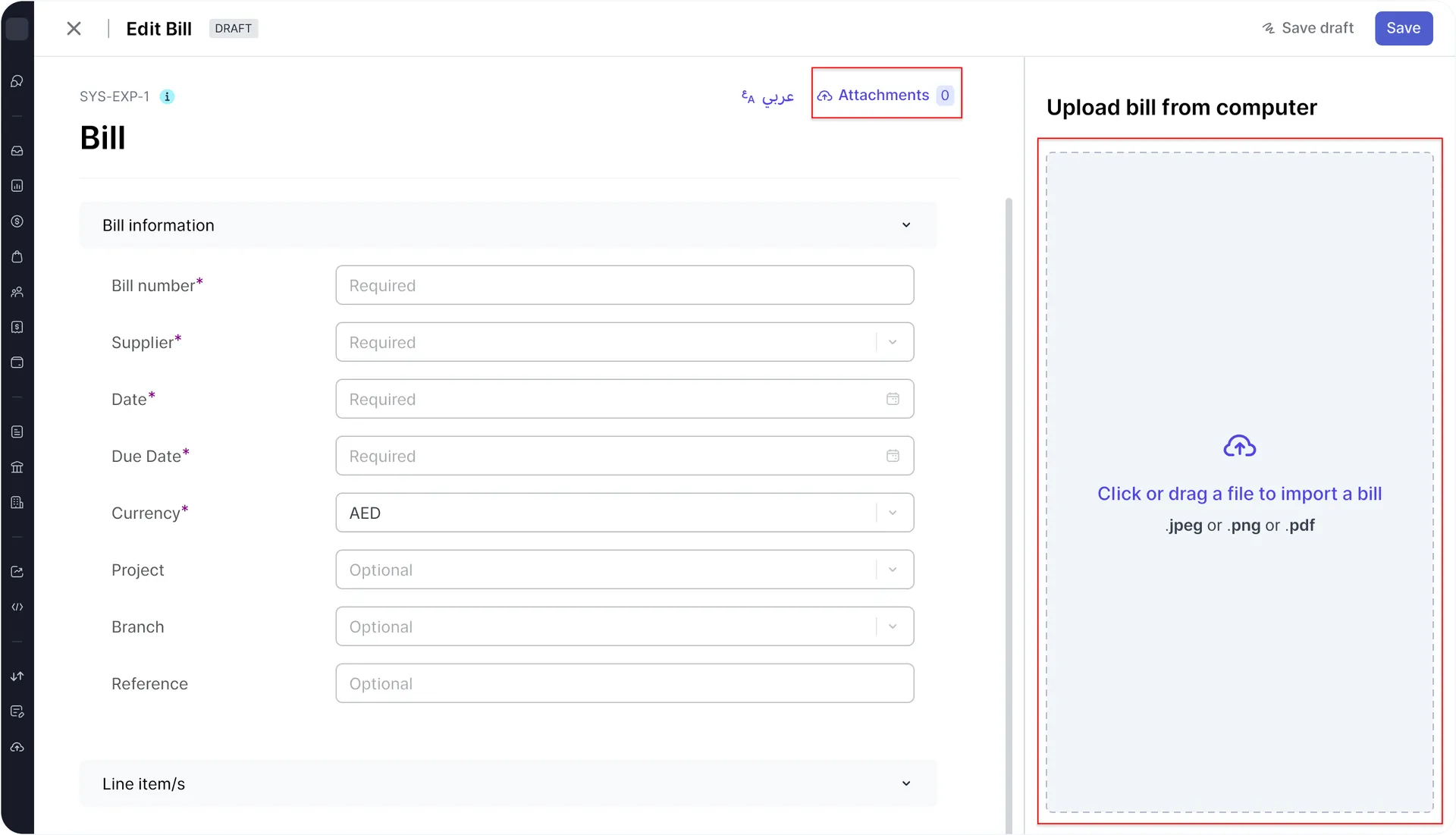
Alternatively, if you’ve already started entering the bill manually, you can:
- Attach the document using
+ Attachments - Or drag and drop the file directly.
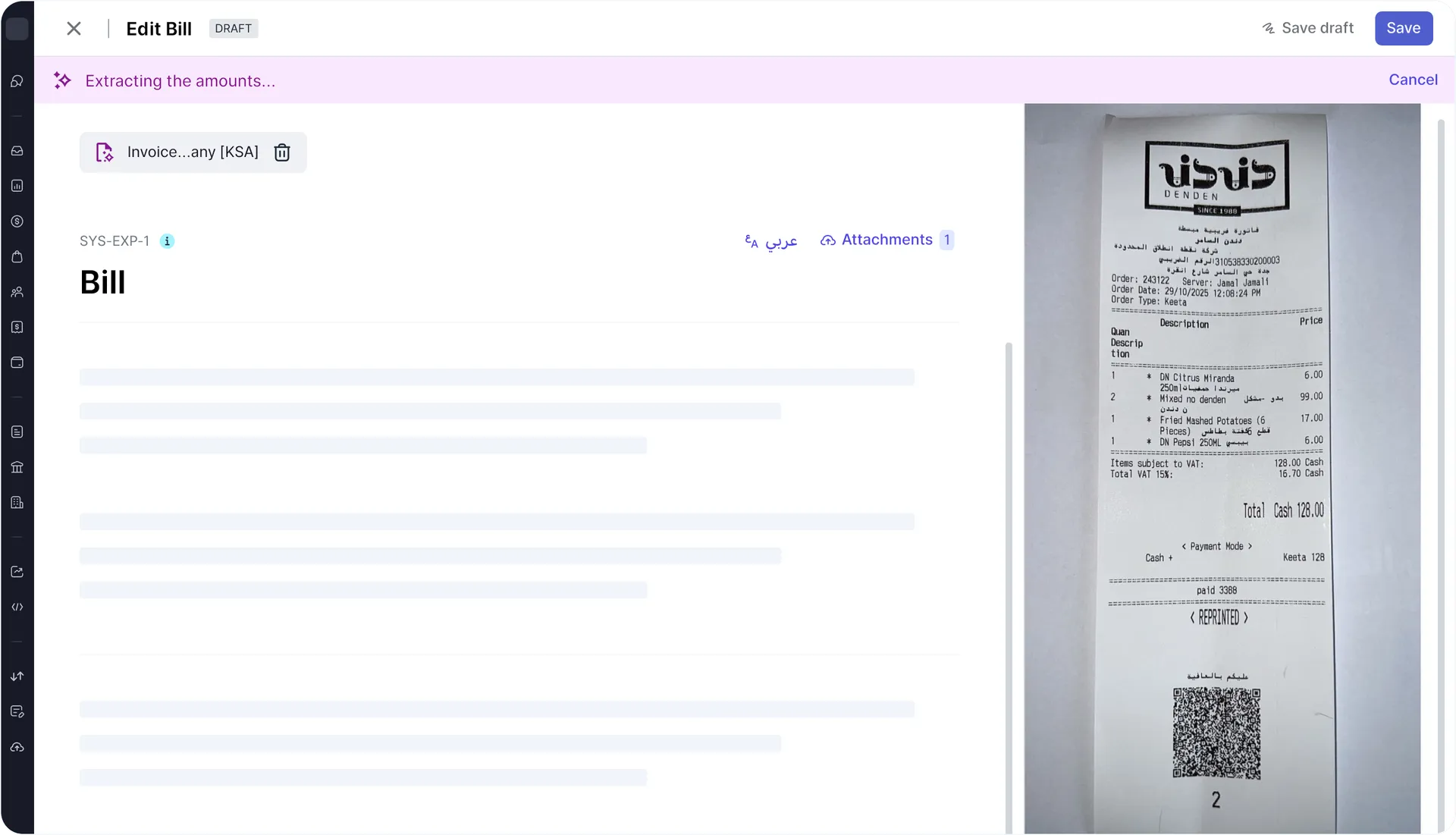
Wafeq will automatically extract:
- Supplier name
- Bill reference
- Date
- Currency
- Amount
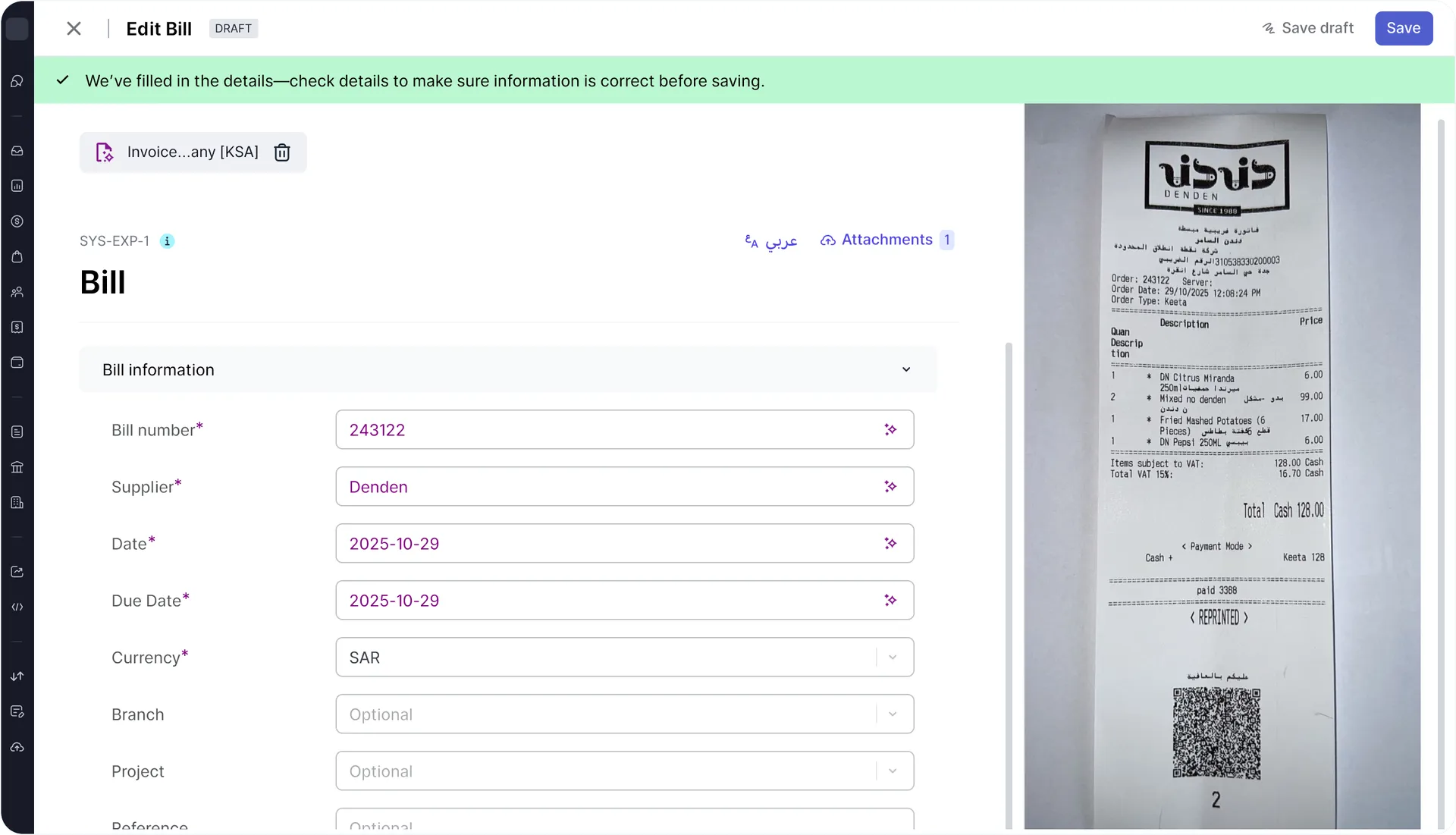
You then review the draft and complete any missing details if needed.
2. Auto-Fill Multiple Bills at Once (Bulk Upload)
When you’re dealing with a batch of bills, Wafeq OCR saves even more time. To upload bills in bulk:
- Go to the Purchases Bills section from the main menu.
- Click on
Create bill. - Open the folder that contains your bill files.
- Select multiple files and drag them into Wafeq.
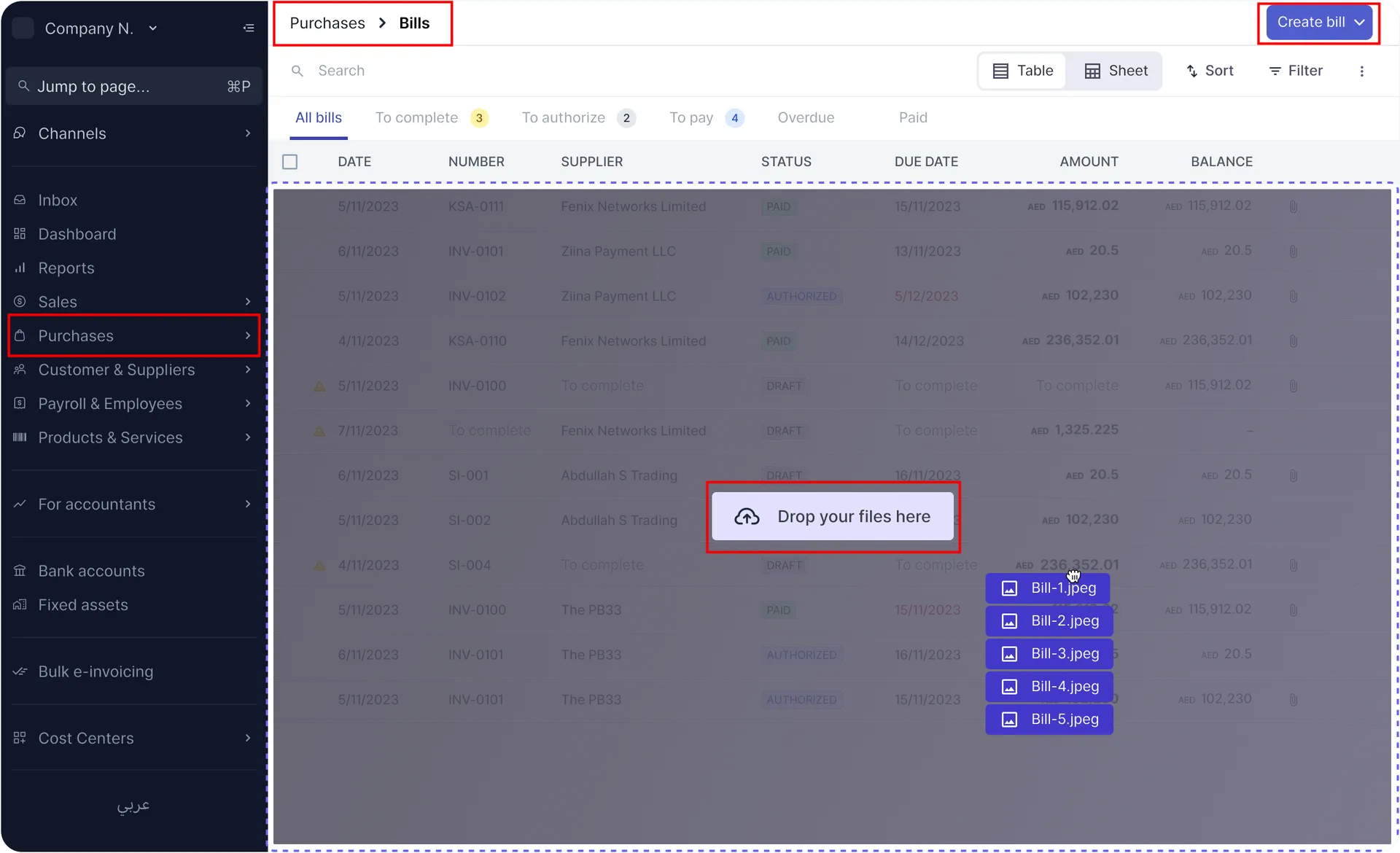
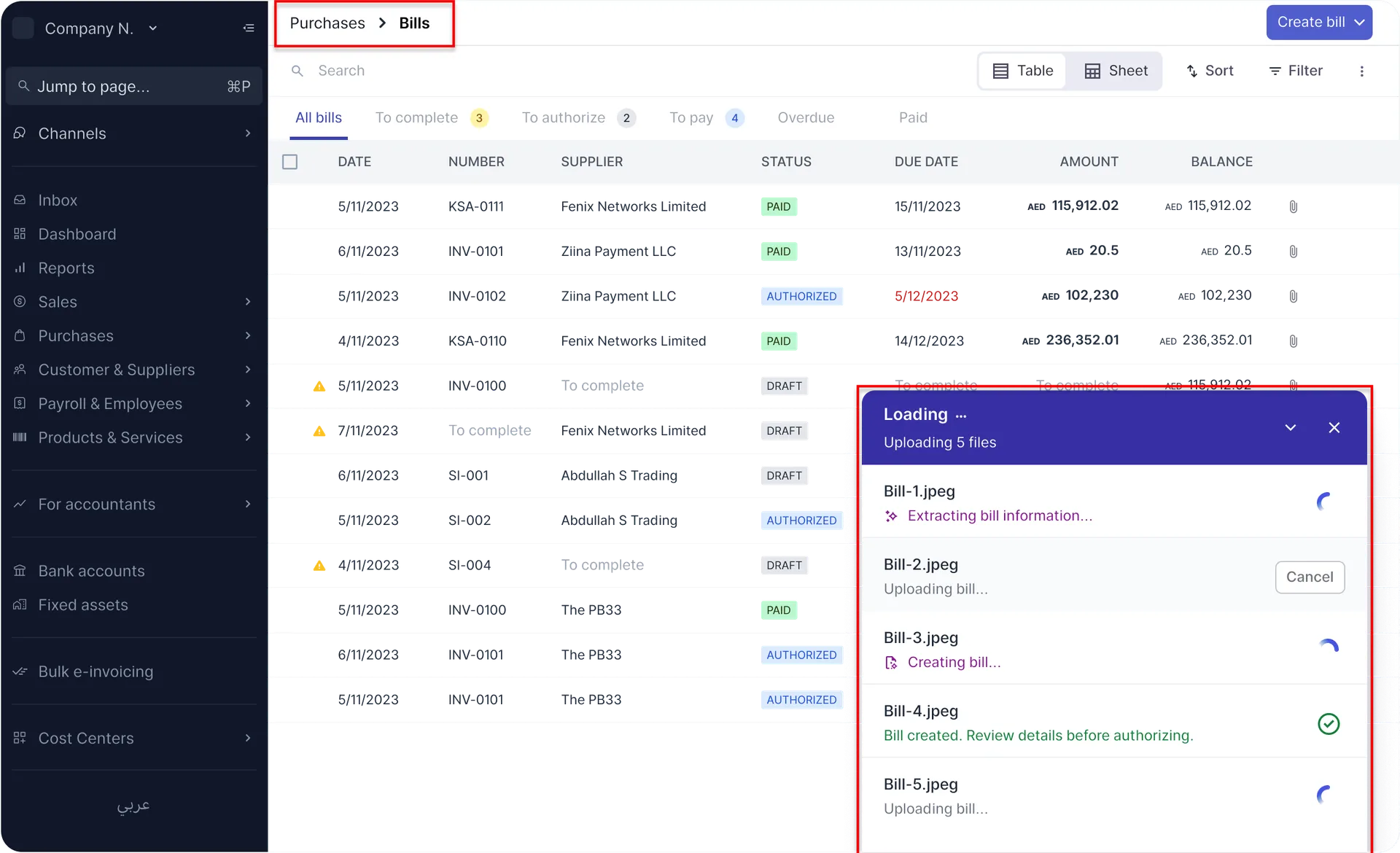
5. Each bill is processed individually, and a separate record is created for every file.
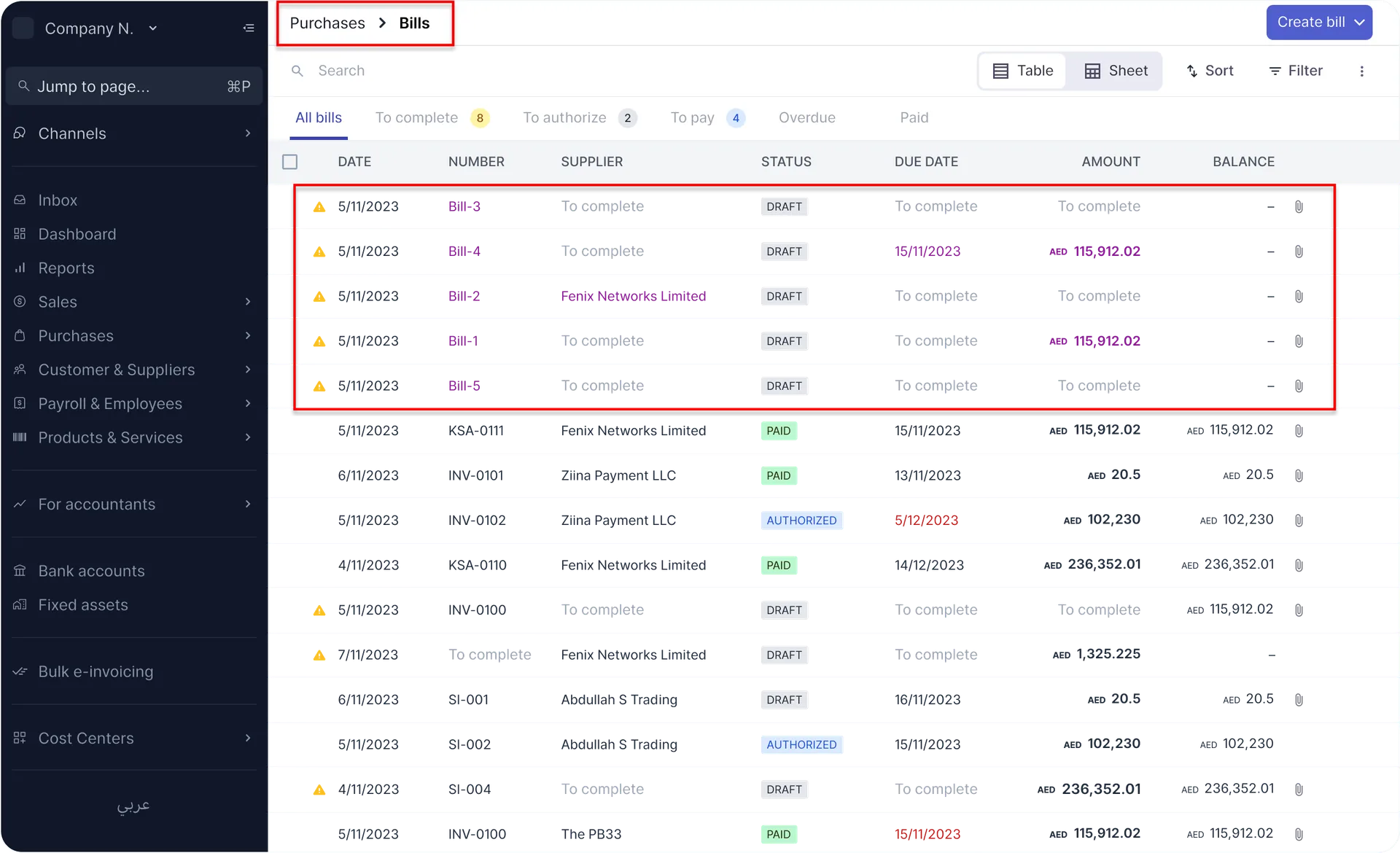
You can then:
- Click
Viewto preview and edit a specific bill. - Or review and edit bills later as part of your regular workflow.
Why does Wafeq OCR Matter for Finance Teams?
On paper, OCR sounds like a simple automation feature. In reality, Wafeq OCR changes how finance teams spend their time.
When expenses and bills are captured automatically, teams stop operating in “catch-up mode.” Less time goes into typing and fixing errors, and more time goes into reviewing, approving, and understanding the numbers.
Here’s how that change looks in day-to-day work:
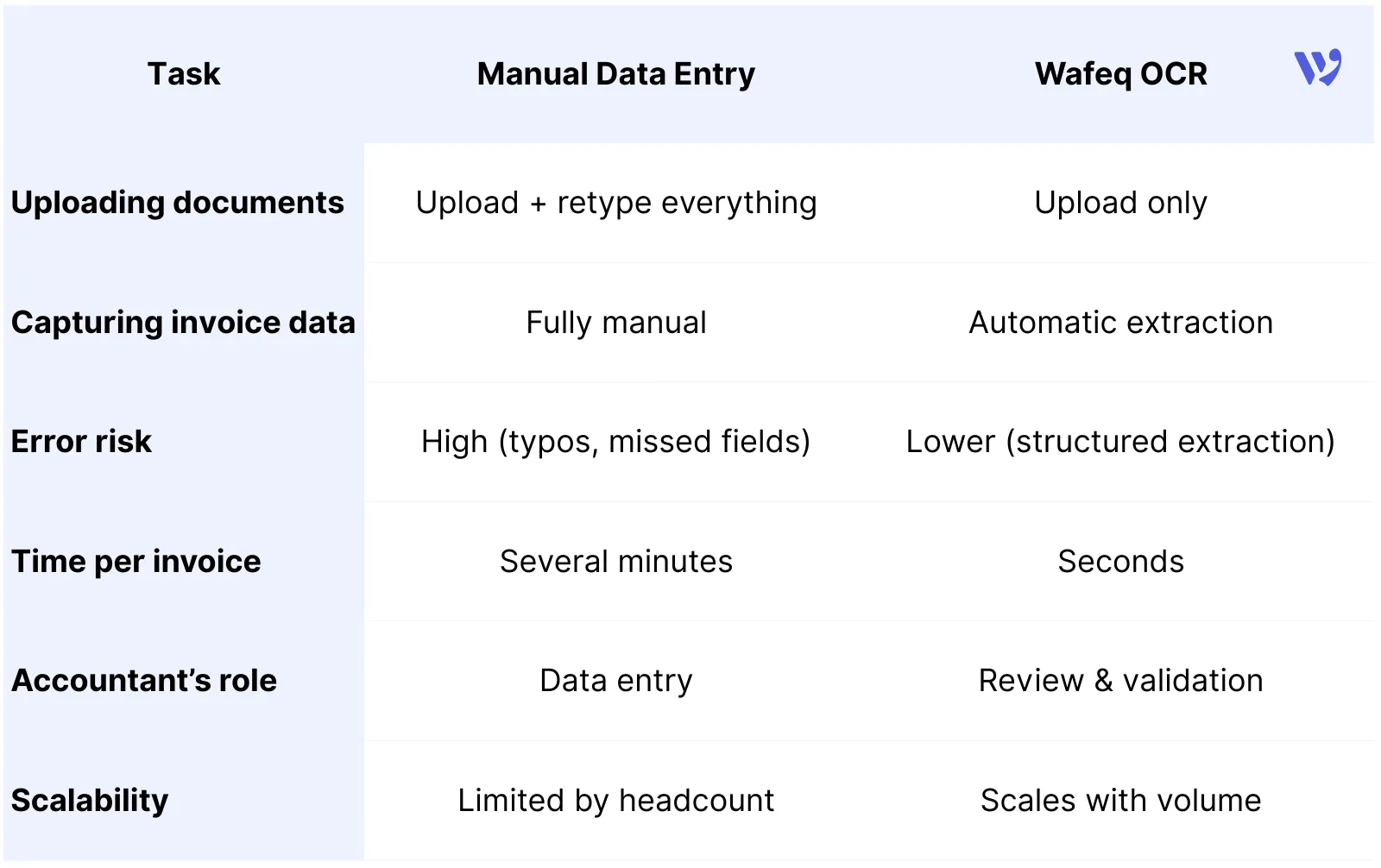
Wafeq OCR handles extraction and drafting first, then returns control to the accountant for review. This balance is especially valuable during high-pressure periods such as month-end closing or VAT reporting, where volume increases but accuracy can’t slip. Also, its impact shows up quickly in three key areas:
- Faster day-to-day operations Batch uploads and auto-filled drafts mean invoices and receipts are processed in minutes, not hours—especially during busy periods.
- Fewer errors, better consistency Because data is extracted and structured automatically, common issues like typos, missing fields, and incorrect amounts are reduced before review even begins.
- Better control without slowing things down OCR in Wafeq doesn’t auto-post entries blindly. Every bill and expense remains a draft until reviewed and confirmed, ensuring compliance and accuracy are intact.
Wafeq OCR isn’t about replacing accountants—it’s about removing the most time-consuming part of their work. By converting receipts, bills, and files into structured draft entries, Wafeq helps finance teams move faster without compromising accuracy or control. Data is captured automatically, reviewed consciously, and posted confidently.
If your team is still spending hours entering the same information repeatedly, it’s probably time for a more efficient approach.
For teams that want cleaner records, faster processing, and fewer manual steps, OCR becomes a natural part of a better accounting workflow.
For teams that want cleaner records, faster processing, and fewer manual steps, OCR becomes a natural part of a better accounting workflow.


.png?alt=media)