
Track every fixed asset and its book value, month by month
Register an asset with its cost, salvage value and useful life, then run depreciation up to any month. Wafeq posts the entries for you.
Features
Every asset, from purchase to fully depreciated
Keep your assets in one list and post their depreciation in a few clicks.
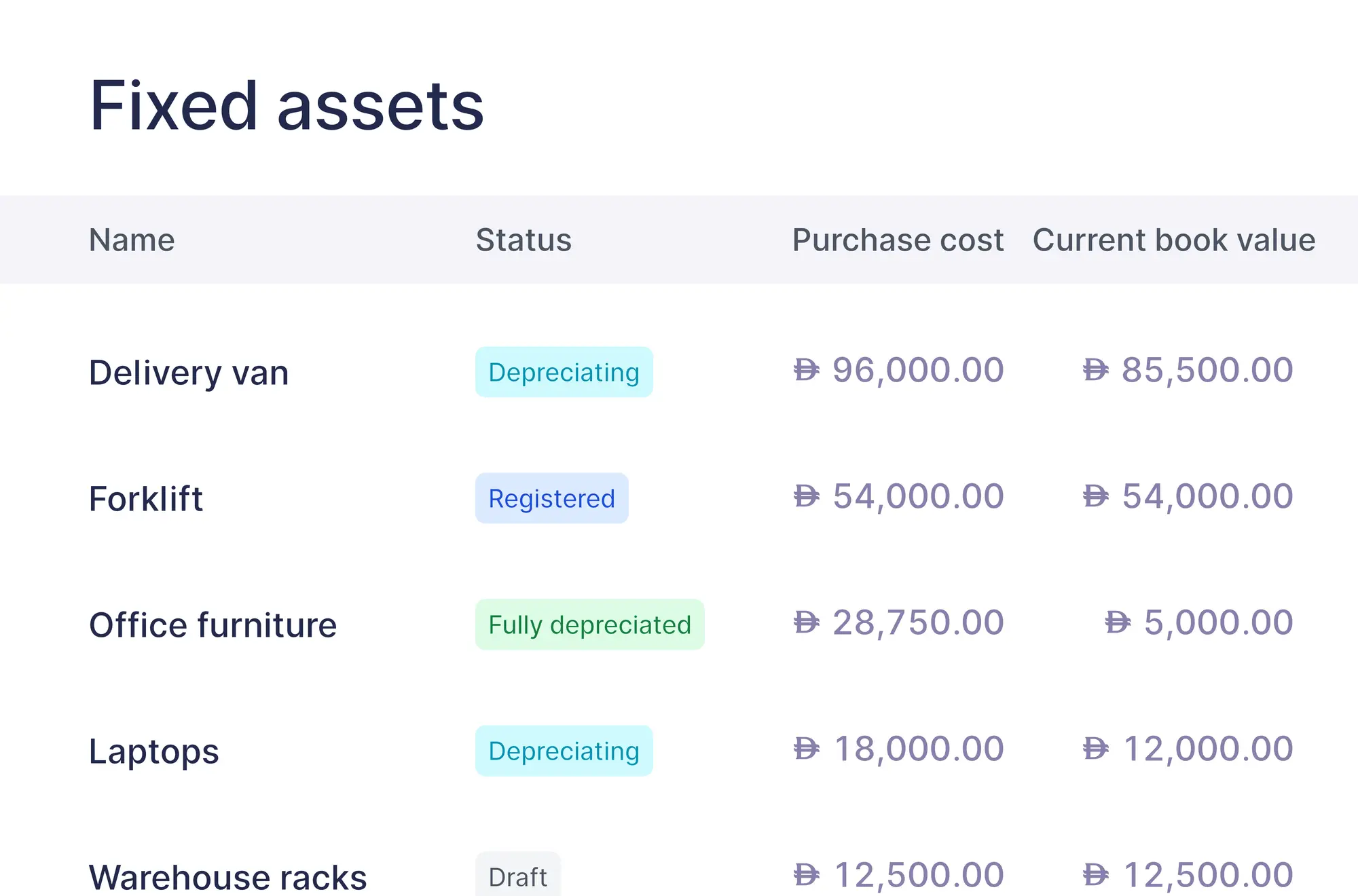
One register for every asset
See each asset's status, purchase cost and current book value in one list, from “Draft” to “Fully depreciated”.
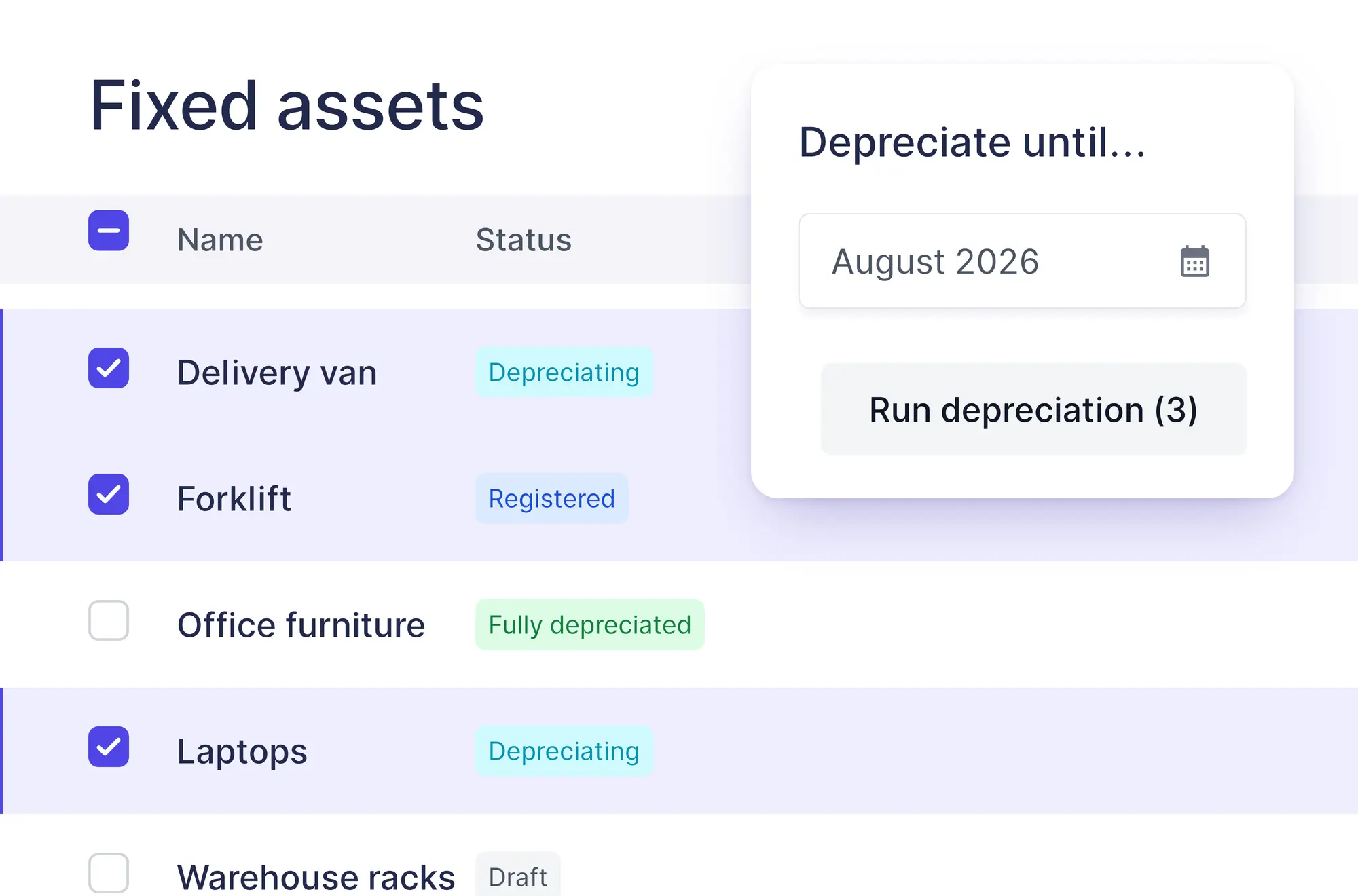
Depreciate many assets at once
Select your registered assets, choose a month, and Wafeq runs depreciation for each month up to its end.
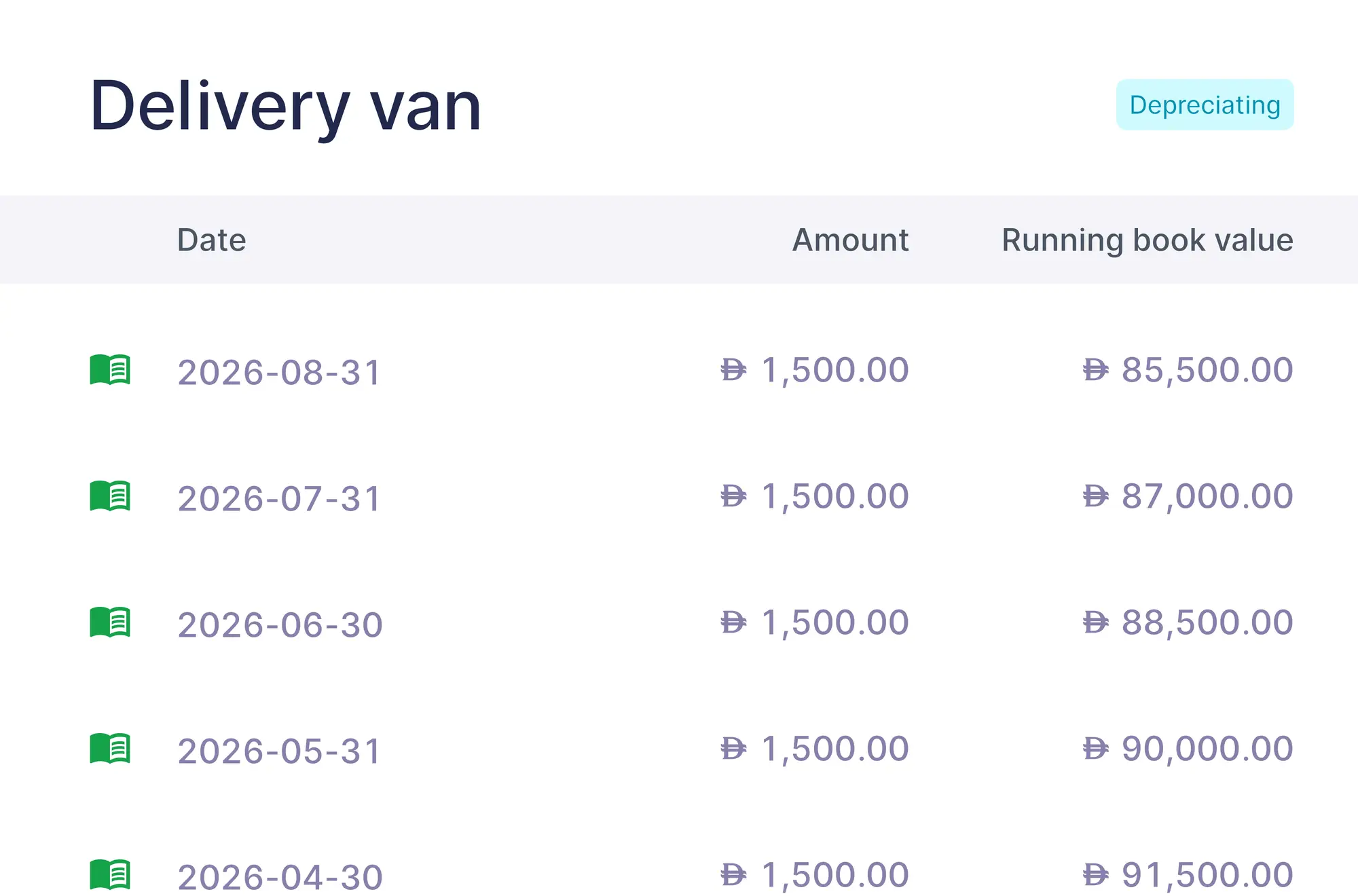
Book value, month by month
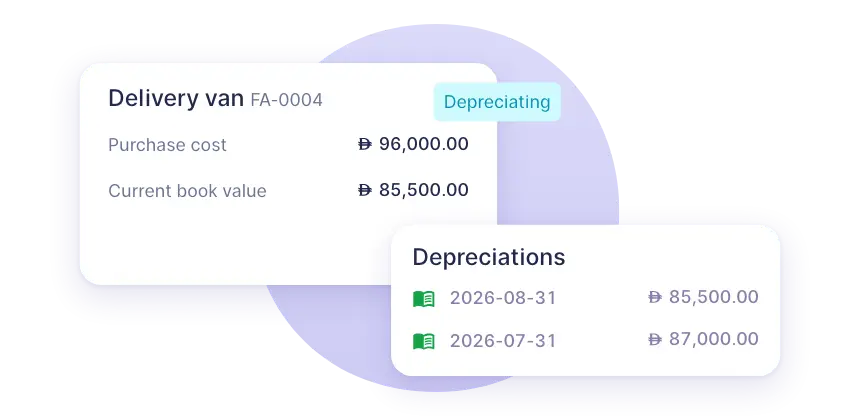
Open an asset's depreciations to see each month's amount, its journal entry and the book value that remains.
How it works
From purchase to depreciation
Four steps from the bill to the monthly entries.
Record the purchase
Enter the bill on a fixed asset account, so the cost reaches your balance sheet.
Add the asset
In “Fixed assets”, enter its purchase cost, salvage value, life in months and depreciation start month.
Register it
Change the status from “Draft” to “Registered”. Only registered assets can be depreciated.
Run depreciation
Choose the month to depreciate until. Wafeq posts an entry for each month and updates the book value.
Straight-line method
Depreciation done by the book
Wafeq uses the straight-line method: the purchase cost minus the salvage value, spread evenly over the asset's life in months.
- Depreciation calculated automatically
- Stops at the salvage value
- Accumulated depreciation on your balance sheet
Getting started
Set up an asset in three steps
The bill records the purchase, and the asset gets its own record for depreciation.
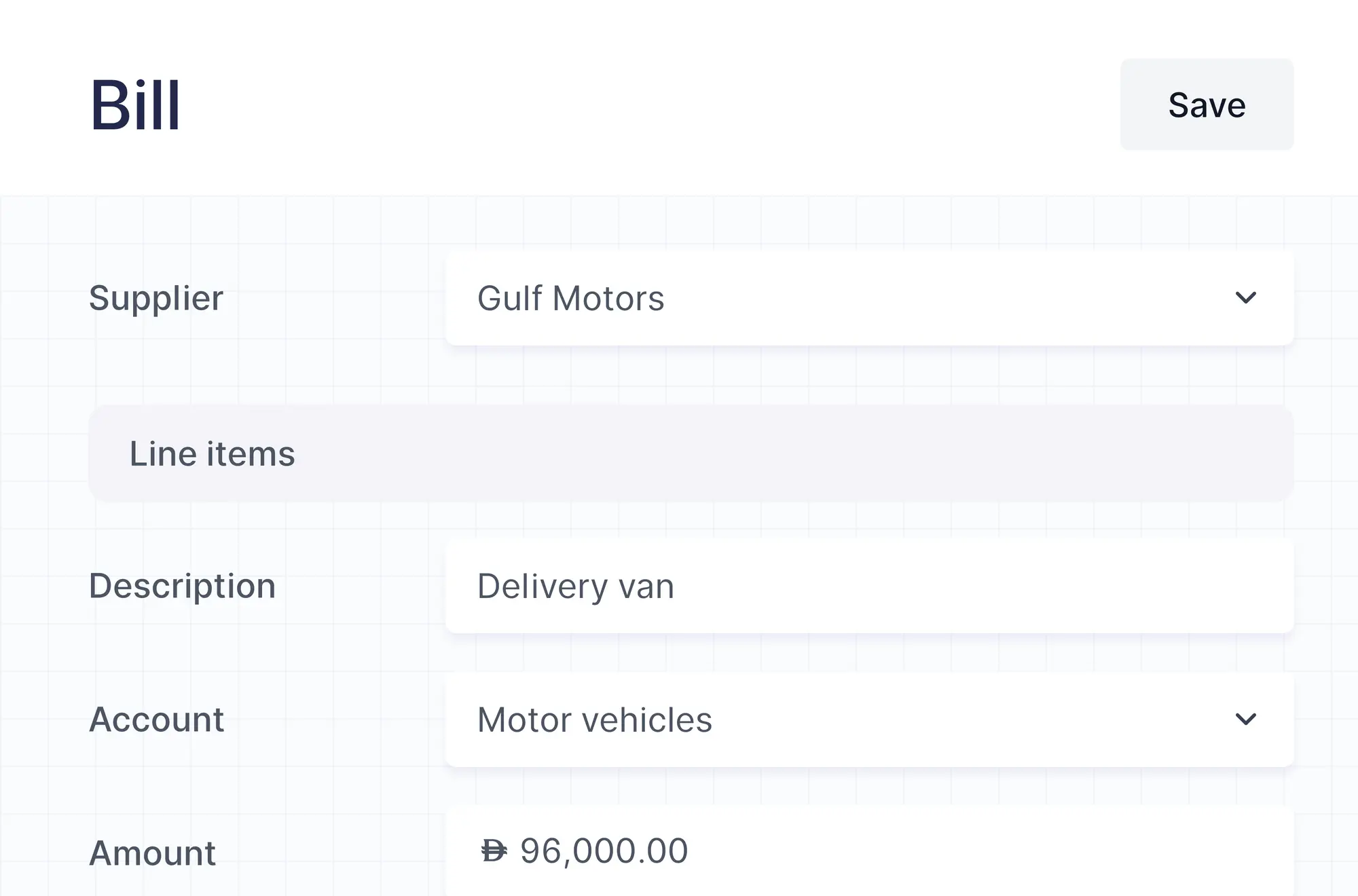
Record the purchase on a bill
Choose a fixed asset account on the bill line. Adding the asset doesn't post its cost; the bill does.
Describe the asset
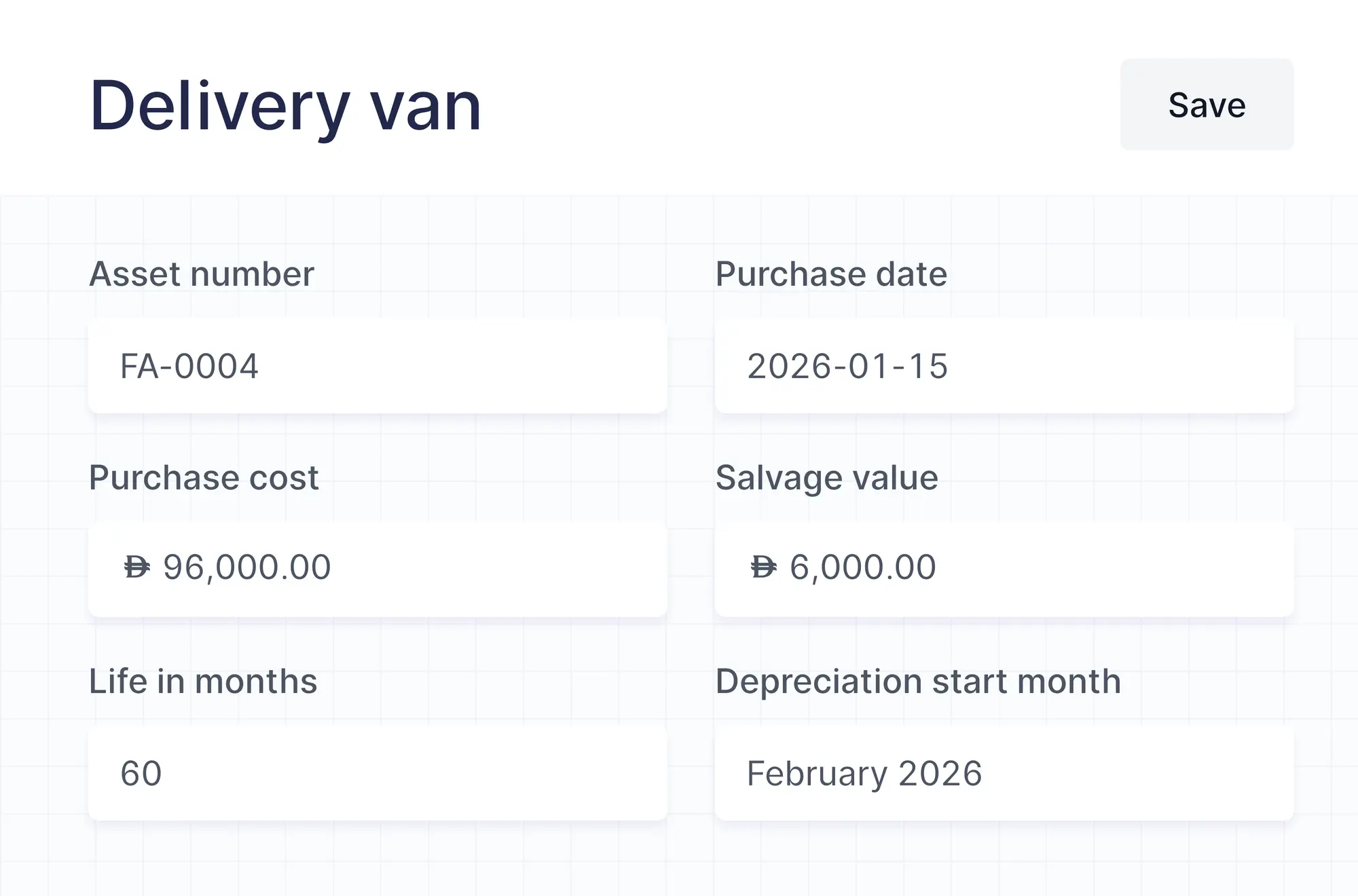
Enter the purchase cost, the salvage value, the life in months and the month depreciation starts.
Choose the accounts
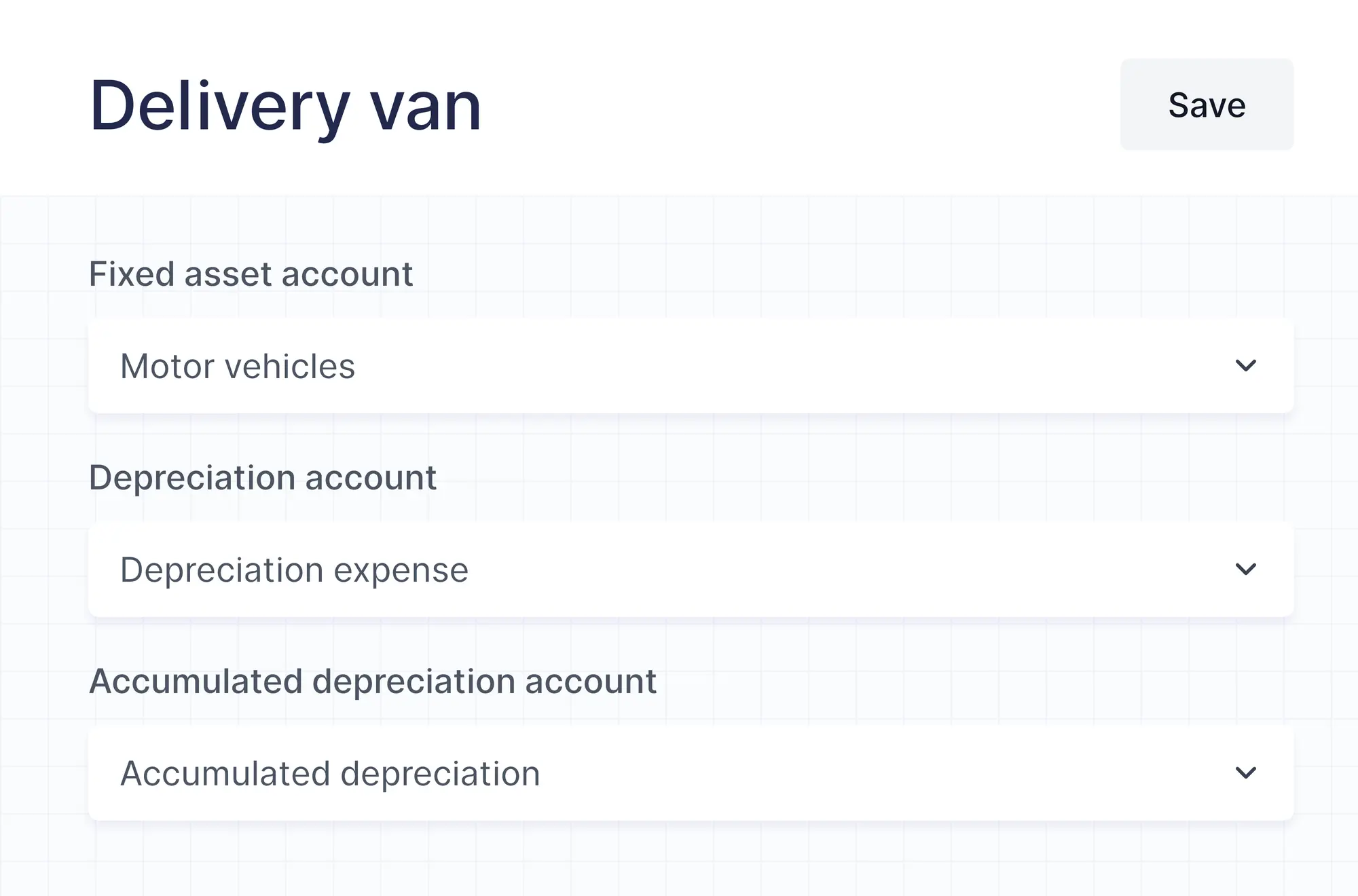
Pick the fixed asset account, the depreciation account and the accumulated depreciation account each entry uses.
Also included
Made for a growing list of assets
The details that save time as your assets add up.
Import from Excel or CSV
Bring all your assets in at once with Wafeq's template and column matching.
Work like a spreadsheet
Add, duplicate and edit assets right in the sheet, and insert rows where you need them.
Branches and projects
Each depreciation entry carries the asset's branch and project, so it lands in the right place.
Search, filter and sort
Find an asset by name or number, and filter by status, project or branch.
Additional features
Spread prepaid expenses too
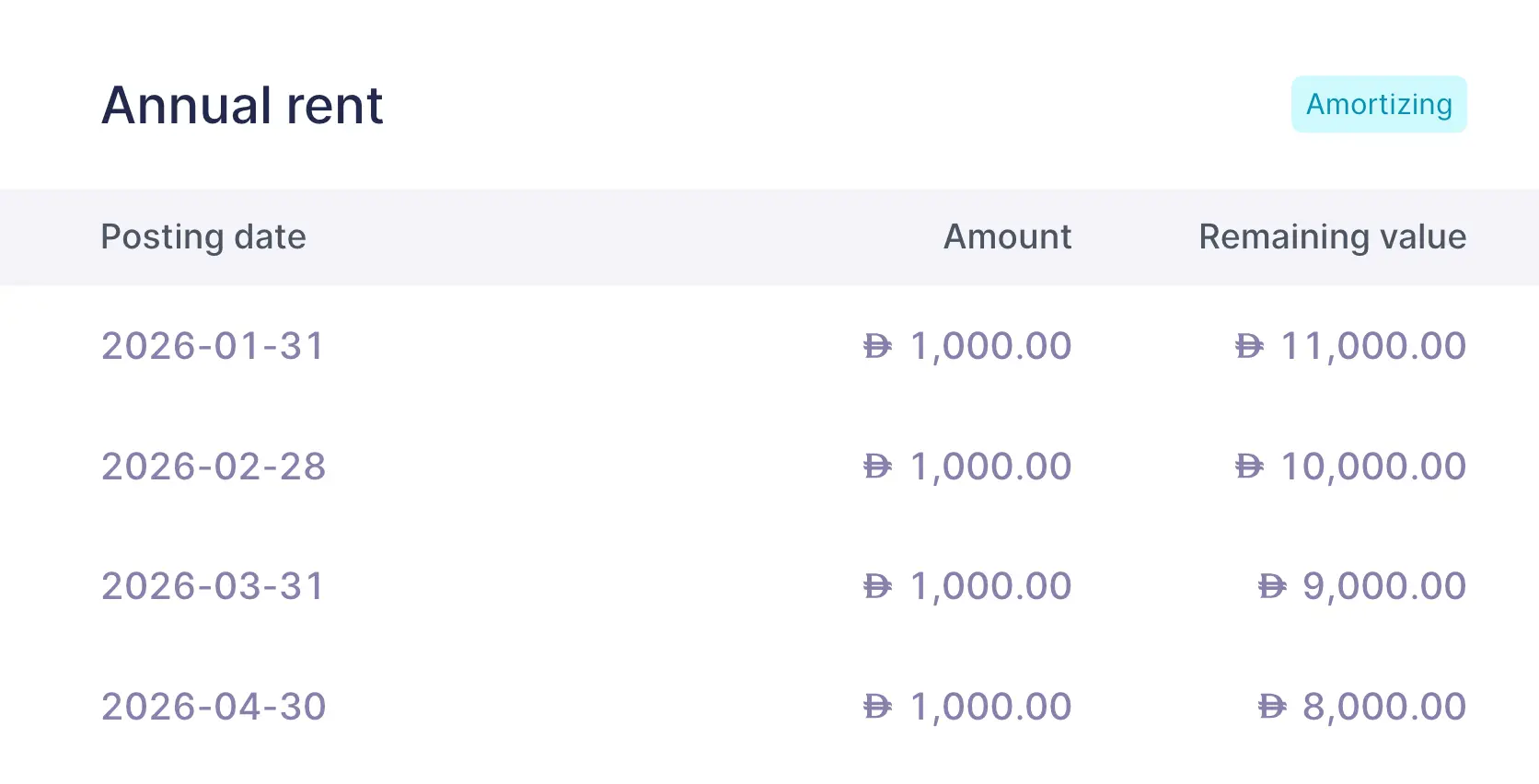
Paid a year of rent or insurance upfront? Add amortization on the bill line and split it evenly or by the days in each month. Once the bill is approved, Wafeq posts each month's share to your expenses.
FAQs
Frequently asked questions

The straight-line method. Each month's depreciation is the purchase cost minus the salvage value, divided by the life in months. Depreciation is calculated in whole months.
No. Record the purchase on a bill with a fixed asset account. The asset record is what Wafeq depreciates.
When the book value reaches the salvage value. The asset's status then changes to “Fully depreciated”.
Change its status back to “Draft” to edit it. This clears its depreciations, and you can run them again once the asset is registered.
Yes. Import them from an Excel or CSV file with Wafeq's template. Record their original purchase bills too, because importing assets doesn't post their cost.
It spreads an expense paid upfront, like annual rent, over the months it covers. Add it on a purchase bill line, and Wafeq posts each month's share from prepaid expenses to your expense account.
Fixed assets and amortization schedules are included in the Premium and Enterprise plans.
Always know what your assets are worth
Keep your asset register and your books in step, month after month.